Dashboard
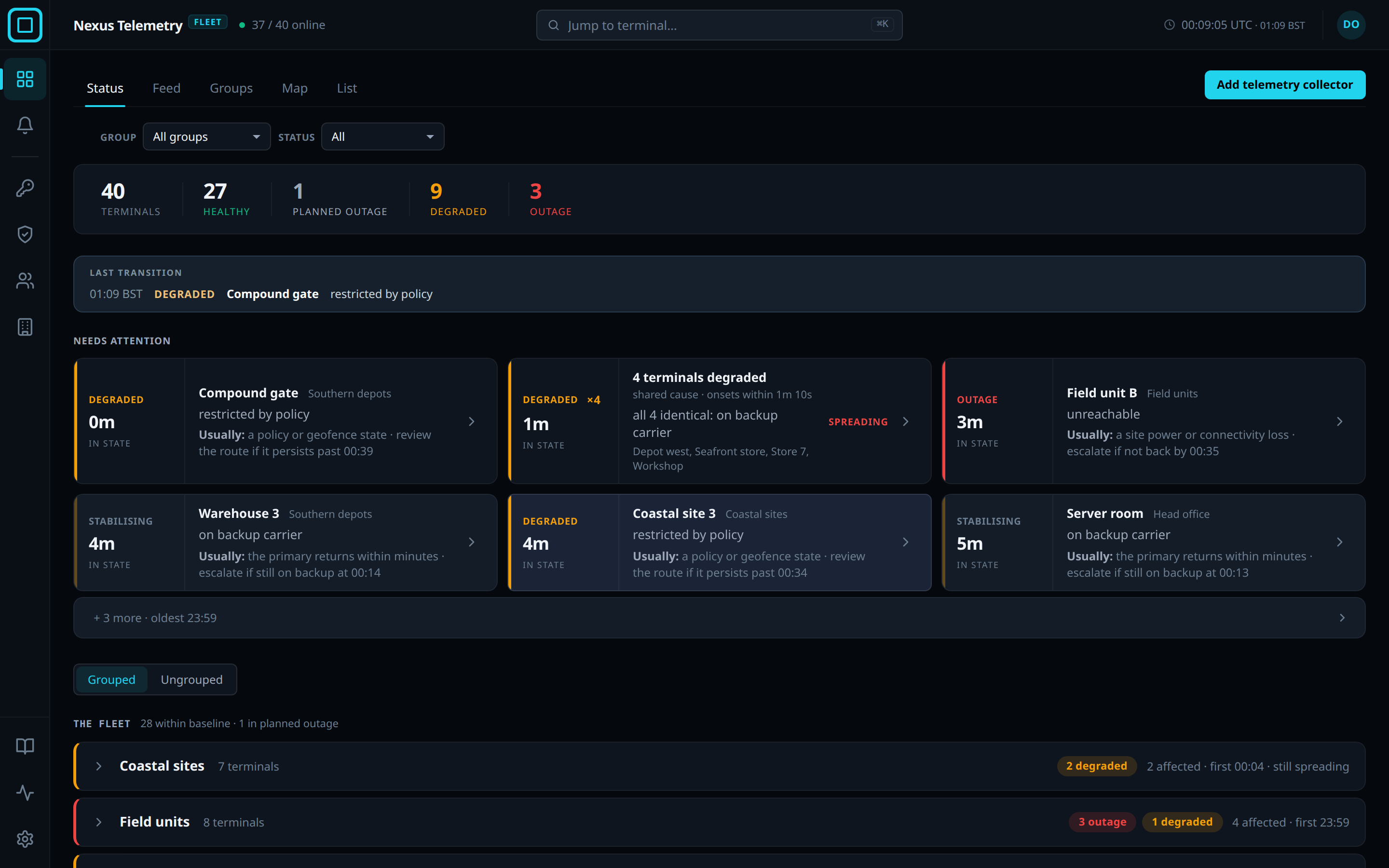
The Nexus Telemetry Fleet dashboard is the web interface of the fleet server. It opens on Status, which lists the terminals that need attention first. The navigation on the left lists the other pages.
Status view
The counts at the top show the fleet total and a count for each state in use. Last transition names the most recent change of state. Each Needs attention card shows the state, how long the terminal has been in it, and the likely cause. The fleet shows the state counts for each group.
States
| State | Meaning |
|---|---|
| Healthy | Latency and drop rate at the terminal’s baseline |
| Planned outage | Down during a maintenance window |
| Warning | Latency or drop rate above the terminal’s baseline |
| Degraded | Up, but on the backup connection, or Starlink has restricted the service and the terminal reports why |
| Outage | The connection has been down for longer than the confirmation period |
See States for the causes and the confirmation rules.
Other views
4 other views show the same fleet:
- Feed: the last 48 hours of events.
- Groups: one card per group.
- Map: every terminal with a position.
- List: every terminal in a table.
See Views and filters.
Live view
A terminal on any view opens its panel. Open terminal on the panel opens the terminal’s page, which opens on the live view, the telemetry streamed from its collector. The live view shows the state and how long the terminal has been in it, when it was last seen, the instrument cards and the charts, with Speed test and Reboot. The terminal’s other views are Alerts, Diagnostics, Obstruction and Admin. See Live view.
Public demo
A public demo of the dashboard is at demo.nexustelemetry.net. The sign-in page shows its username, password and organisation. The demo refuses a change to an account, the sign-in policy or the alert email with Not available in the demo. It resets every 3 hours.
Search
Press cmd+K, ctrl+K or /, then type part of a name. The search lists
matching terminals, groups, pages and commands. Arrow keys move through them
and Enter opens the selected one.