Wall displays
A display is a wall screen that shows the NOC view, read only, in kiosk mode. It is not a user account. It reaches the NOC view and nothing else, and it signs no one out. A display shows its own organisation and every organisation under it, so a reseller’s wall shows its customers’ terminals. To show one customer’s terminals, pair the wall in that customer’s organisation.
An Owner or Admin with access to every fleet makes displays, in Settings under Displays. Displays cannot be paired in the demo. An organisation has up to 50 displays that are live or waiting for their screen.
Pair a screen
-
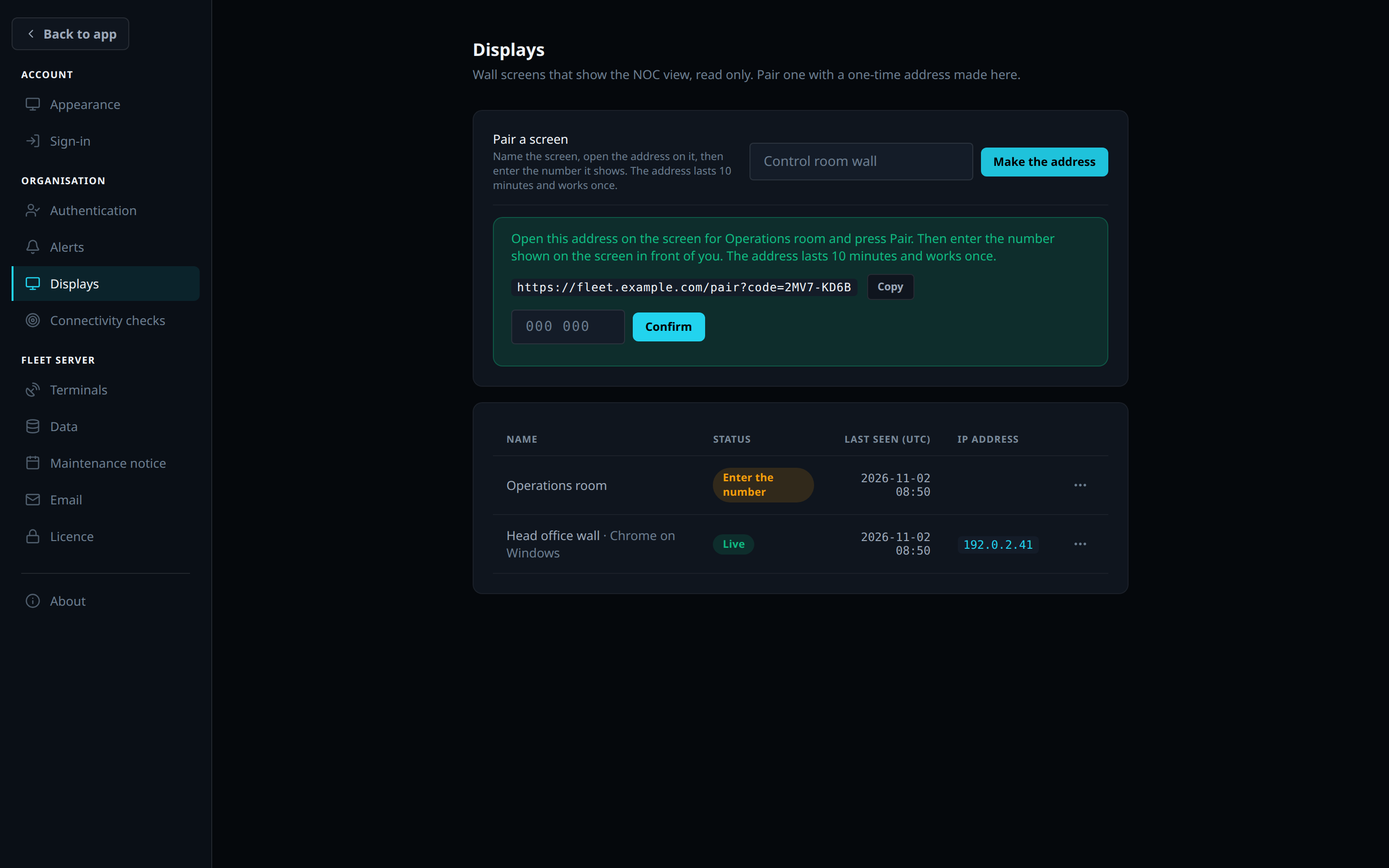
In Settings, open Displays. Under Pair a screen, enter a name for the screen and click Make the address.
-
Click Copy. The address has the form
https://<organisation address>/pair?code=XXXX-XXXX. It lasts 10 minutes and works once. -
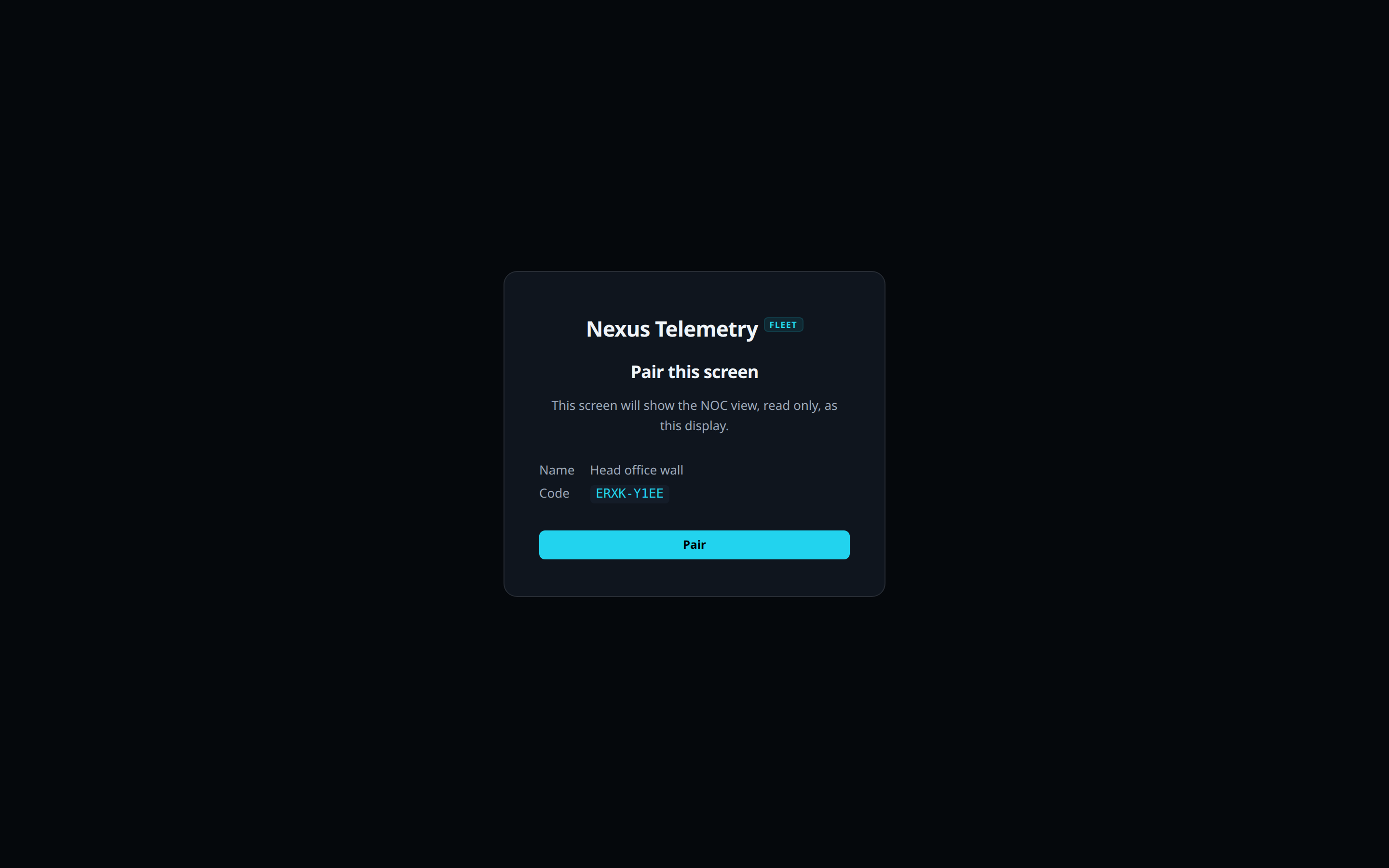
Open the address in the browser on the wall’s computer. The page names the display. Click Pair.
-
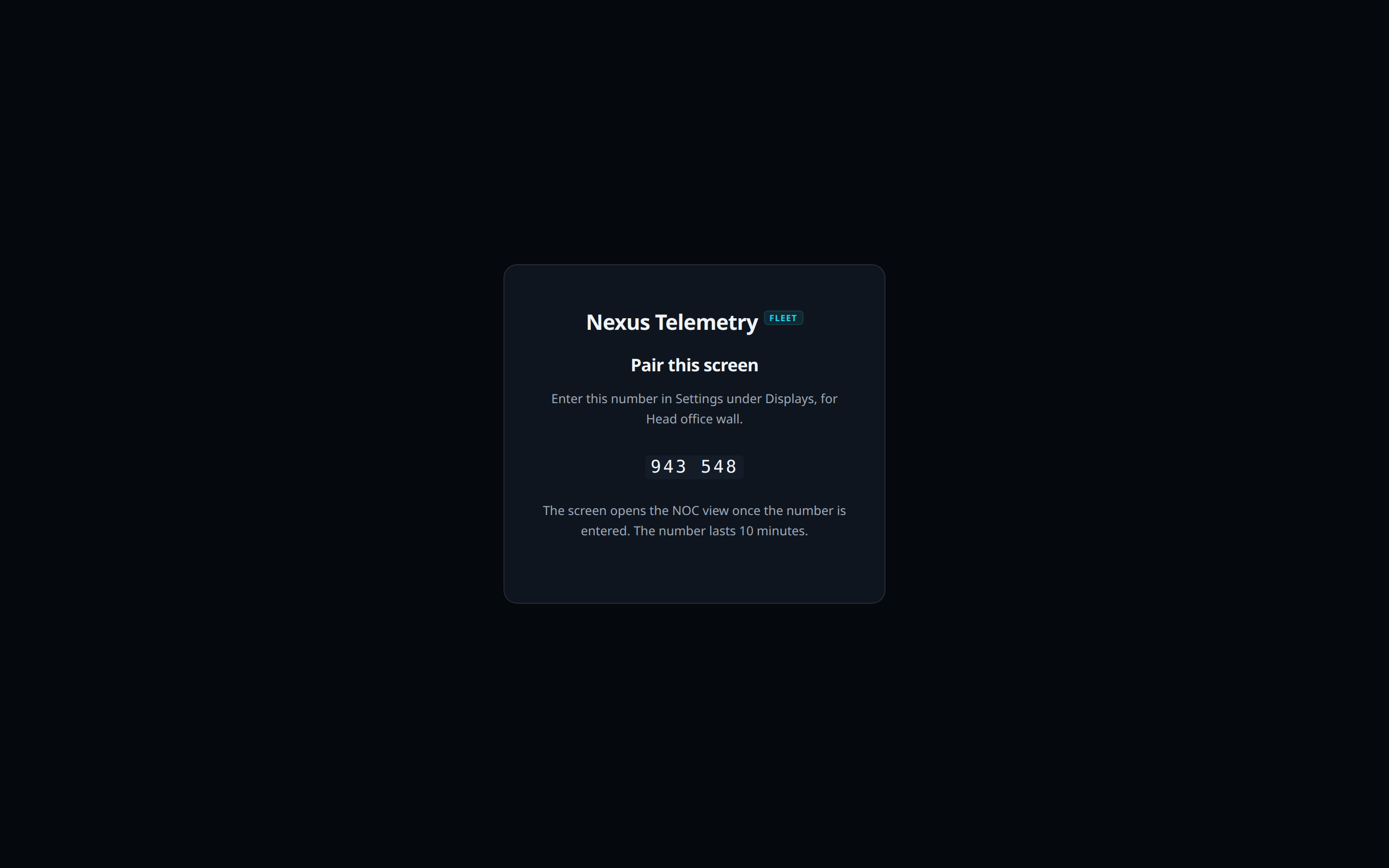
The screen shows a 6-digit number. Enter it in Settings, in the box under the address, and click Confirm.
-
The screen opens the NOC view in kiosk mode.
Opening the address does not use it, so a chat app’s link preview cannot use it. Only Pair does. An address that reaches someone else gives them a number on their own screen and nothing more. Enter a number only for the screen in front of you. 5 wrong numbers end the attempt: make a new address. A browser with someone signed in to Fleet cannot pair.
Displays list
| Column | Shows |
|---|---|
| Name | The display’s name, the screen’s browser and system (for example Chrome on Windows), and Unused for 30 days for a live display that has not called in for 30 days |
| Status | Waiting for the screen, Enter the number, Live, Ended or Revoked |
| Last seen (UTC) | When the screen last called in. It updates every 5 minutes while the screen is in use. A display with no screen yet shows when it was made |
| IP address | The address the screen last called in from |
Each row’s menu, except on a revoked display, has Enter number while a screen is asking for one, New address, Rename and Revoke. Enter number names the browser and IP address of the screen that asked. New address pairs the display again: the screen that completes it replaces the old one.
End a display
A display stays signed in while it is in use. A display that makes no request for 7 days ends. Its status reads Ended once the screen calls in again. Until then it reads Live. A display whose address expired before a screen paired also reads Ended.
Revoke ends a display at its next request. The screen then reads “This screen is not paired.”
To sign a screen out from the screen itself, open /display/leave on it and
click Sign out. Its status reads Revoked. Pairing it again requires an
Owner or Admin.
The organisation’s audit trail records each step: the display made, an address issued, a number confirmed, the screen paired, renamed, revoked and signed out.
Recommended wall
A wall is a mini PC or desktop computer driving a TV or monitor, running Google Chrome in kiosk mode on the organisation’s NOC view.
- Use a local account for the wall alone, set to sign in automatically at power on.
- Start Chrome at sign-in with the command for its system, below.
- Turn off sleep and screen blanking on the computer, and energy saving and automatic power-off on the TV.
- Pair once: close the kiosk with Alt+F4, run the same command with the
pairing address in place of the
/nocaddress, click Pair, and enter the number in Settings. From then on the command opens the NOC view.
The pairing is kept in the profile folder that --user-data-dir names. Do not
clear its cookies or change the folder: either ends the pairing.
| Switch | Effect |
|---|---|
--kiosk |
Full screen with no browser controls |
--no-first-run |
Skips the first-run pages |
--user-data-dir=<folder> |
Keeps the profile, and the display’s sign-in, in that folder |
The switches are Chromium’s (switch list, user data directory).
Microsoft Edge’s kiosk mode always runs an InPrivate session, which keeps no cookies after it closes (Microsoft). A wall in Edge’s kiosk mode loses its pairing at every restart. Use Chrome.
Windows
"C:\Program Files\Google\Chrome\Application\chrome.exe" --kiosk --no-first-run --user-data-dir=C:\FleetWall https://acme.fleet.example.com/noc
Make a shortcut with this command as its target. Press Windows + R, enter
shell:startup, and move the shortcut into the folder that opens
(Microsoft).
In the power settings, set the screen and sleep timeouts on mains power to
Never.
Linux
On Ubuntu Desktop, with Google Chrome from Google’s package, save this as
~/.config/autostart/fleet-wall.desktop in the wall’s account
(autostart specification):
[Desktop Entry]
Type=Application
Name=Fleet wall
Exec=google-chrome --kiosk --no-first-run --user-data-dir=/home/wall/.config/fleet-wall https://acme.fleet.example.com/noc
Turn off screen blanking, the lock screen and sleep on mains power:
gsettings set org.gnome.desktop.session idle-delay 0
gsettings set org.gnome.desktop.screensaver lock-enabled false
gsettings set org.gnome.settings-daemon.plugins.power sleep-inactive-ac-type 'nothing'
In Settings, under Users, turn on Automatic Login for the wall’s account.