Groups
A group is a named set of terminals in Nexus Telemetry Fleet. Users with the Owner or Admin role can create, rename, fill and delete a group. Users with the Operator or Viewer role can see groups and cannot change them. See Users and roles for the roles.
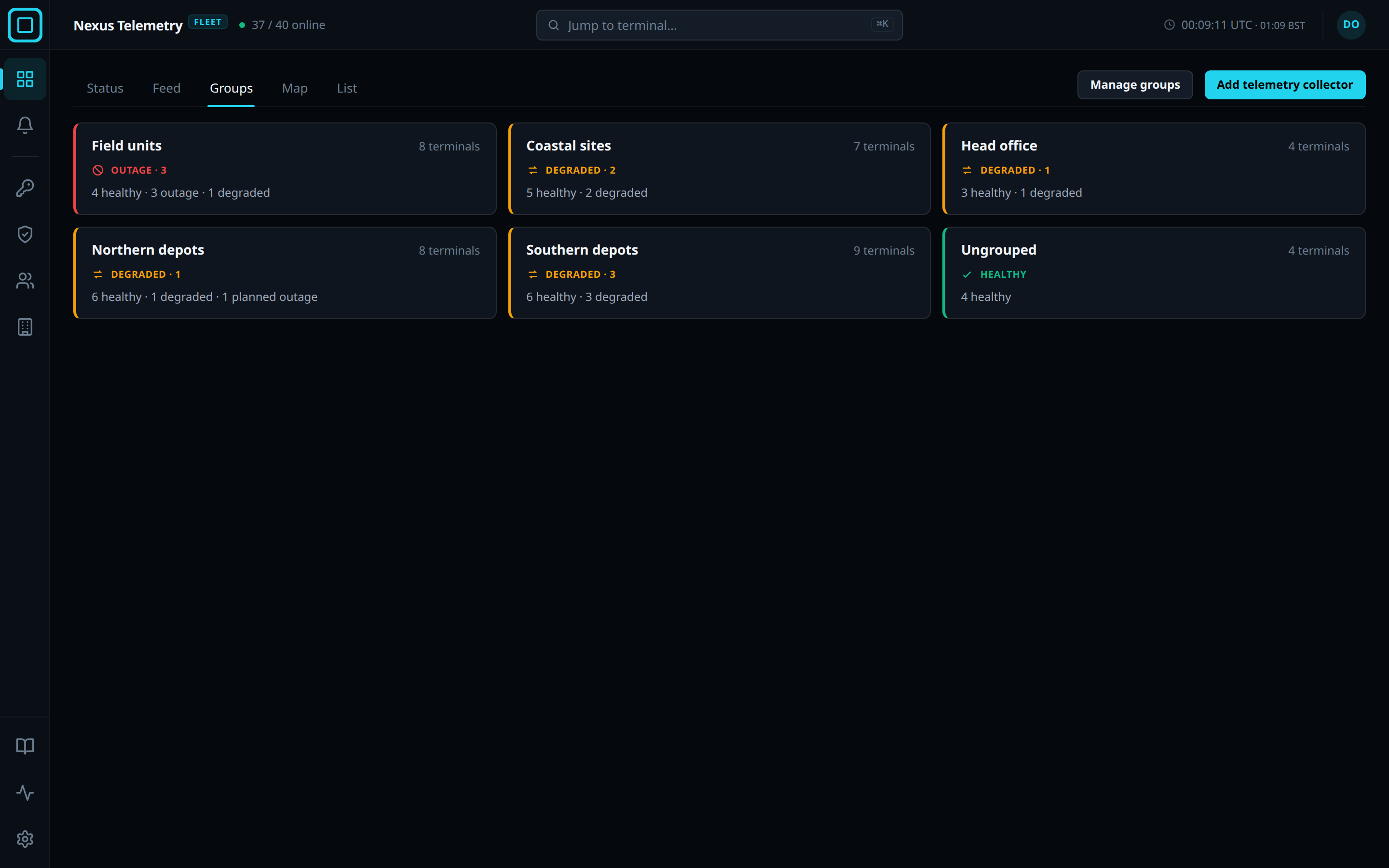
Groups view
The Groups view is one card per group, and a last card, Ungrouped, for the terminals in no group. The group cards are ordered by their worst member’s state, worst first, and then by name. The cards refresh every 5 seconds. Clicking a group’s card opens the group’s page. Clicking Ungrouped opens the Status view.
| Part | Shows |
|---|---|
| State badge | The worst state among the group’s terminals, and how many terminals are in that state. When every terminal is healthy, the badge shows no count |
| Summary line | How many terminals are in each state |
| Maintenance badge | Shown while a maintenance window is open for the group |
| N reporting but idle | N terminals are connected and have sent no reading for more than 2 minutes |
Group page
| Section | Shows |
|---|---|
| Page header | The group’s name, its worst state with the count, its number of terminals, and the summary line. All groups returns to the Groups view |
| Group trends | One chart per instrument, latency and throughput among them, merged across the group’s terminals. The line Merged member summaries · N of M terminals reported beneath the heading says how many of the group’s terminals have reported in the time range. The time range is 1h, 6h, 24h, Week or Year, with 1h the default |
| Terminals | One row per terminal with Terminal and State. Each name opens the terminal’s panel. Hovering a row shows Live view, Show on map, Alert history and Terminal settings at its end |
Management page
The management page is opened with Manage groups on the Groups view, or from an organisation’s row on the Organisations page. It is one table with Group, Terminals and Maintenance, and an actions menu on each row. A last row, Not in a group, counts the terminals in no group. Every action confirms with a message when done.
A user’s access can be limited to particular groups. See Users and roles.
New group
- Press Add group in the page header.
- Type a Name.
- Press Create group.
The name “Ungrouped” is reserved, in any capitalisation. A name another group already uses is refused.
Membership
- Open the group’s actions menu and choose Manage terminals.
- Tick the terminals that belong in the group. Find a terminal narrows the list.
- Press Save changes.
Before the change is saved, each row is marked with where its terminal stands: Moves from with the name of the group it leaves, Leaves this group, Not in a group, or In with the name of the group it stays in. Save changes is disabled until at least one terminal would join or leave. A terminal that is unticked leaves the group and joins no other.
Rename
- Open the group’s actions menu and choose Rename.
- Edit Name and press Save changes.
The members, any scheduled maintenance, and users’ access to the group are unchanged.
Delete
- Open the group’s actions menu and choose Delete group.
- Read the drawer. It says how many terminals lose their group, and which users lose the access that named it.
- Press Delete group, or Keep group to cancel.
The group’s maintenance windows, open and scheduled, are cancelled, and a user’s access limited to the group is revoked. The terminals keep running and keep their history, and are listed under Ungrouped. Deletion cannot be undone.
Group filter
The dashboard’s other views offer a Group filter, which shows one group’s terminals only. The Status view offers it once a group exists. On the Status view it also narrows the counts at the top of the view. The Groups view has no filter. See Views and filters.
See Maintenance windows for scheduling maintenance for a whole group.