Sign-in
A Nexus Telemetry Fleet user signs in with a username and a password. With two-factor authentication on, the sign-in also requires a code from an authenticator app. An organisation can turn on Microsoft sign-in for users with a Microsoft work account.
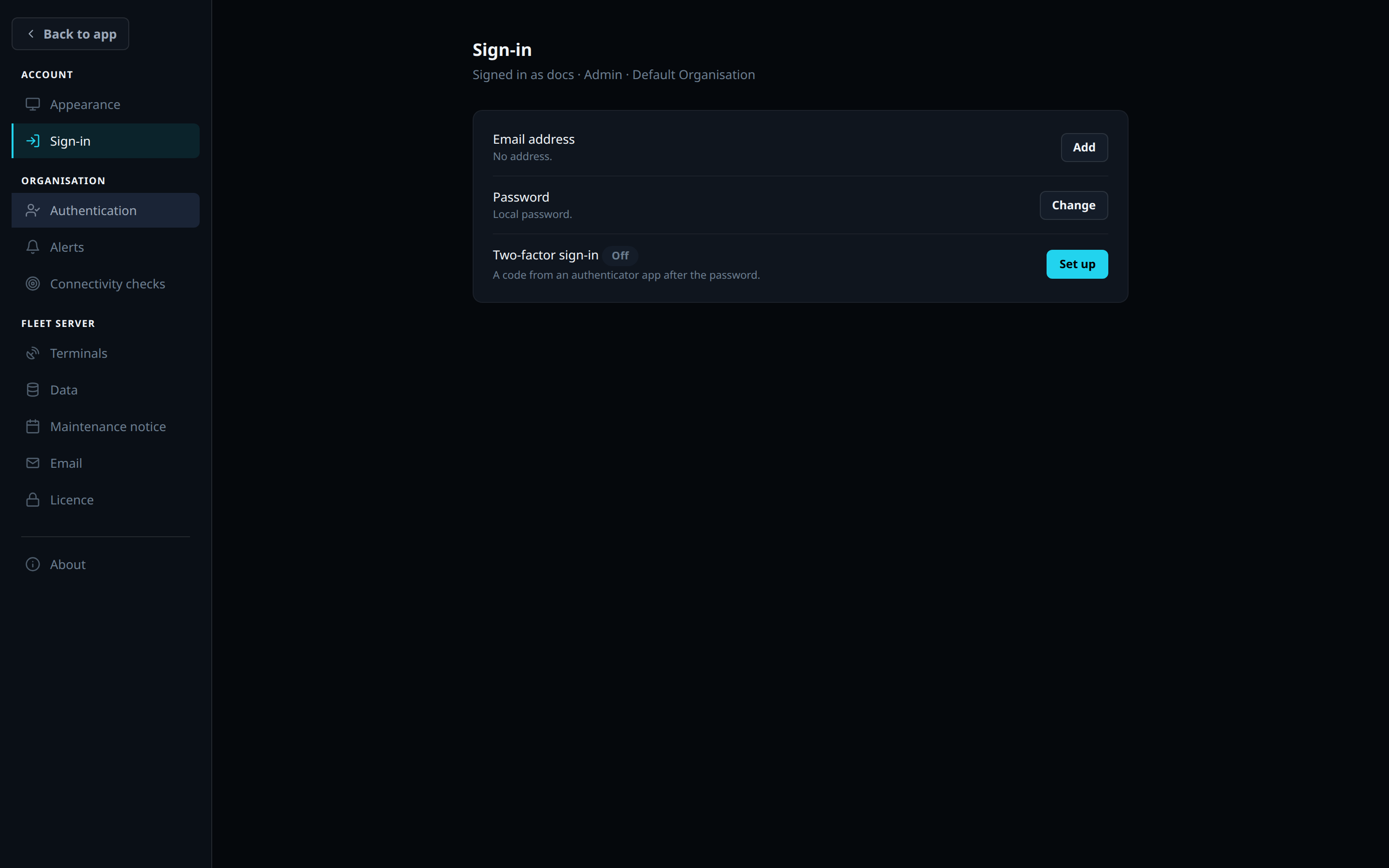
A user changes their own password, email address and two-factor authentication on the Sign-in page under Account in Settings. An Owner or Admin sets the organisation’s sign-in policy under Authentication in Settings.
First sign-in
An administrator generates a user’s first password. The user sets their own password at their first sign-in. A password is at least 12 characters. The dashboard then asks for an email address if the account has none. The address is optional. A user whose role requires two-factor authentication sets it up next. No other page opens until they do.
Email address
An email address is optional on an account. A Microsoft sign-in matches the email address on the account. The address is not used to reset a password. An administrator resets a password. See Users and roles.
- On the Sign-in page, press Add, Verify or Change on the Email address row.
- Type the address and press Send code.
- Type the 6-digit code from the email and press Verify.
The code expires after 10 minutes or 5 wrong attempts. The fleet server sends the email. See Server configuration.
Two-factor authentication
With two-factor authentication on, a sign-in requires the password and a 6-digit code from an authenticator app. The code changes every 30 seconds. An account with a password can use two-factor authentication. Microsoft provides the second factor for a Microsoft sign-in.
Set-up
- On the Sign-in page, press Set up on the Two-factor sign-in row.
- Scan the QR code with an authenticator app, or press Copy key and enter the key in the app by hand.
- Type the code the app shows and press Confirm.
Set-up gives the user 10 recovery codes. The dashboard shows them once. Copy codes copies them and Download saves them as a file. A recovery code replaces the app’s code for 1 sign-in. Each code works once. New recovery codes on the Sign-in page issues 10 new codes. The old codes stop working. Issuing new codes requires a code from the app.
Turning two-factor authentication on ends the user’s other sessions.
Sign-in with two-factor authentication
After the password, the Second-factor authentication page asks for the code from the app. Having trouble signing in? opens a field for a recovery code instead. Cancel and sign out ends the attempt. After 5 wrong codes the attempt ends. The user starts again with the password.
Turning two-factor authentication off
Turn off on the Sign-in page removes the second factor. Turning it off requires a code from the app. A user cannot turn the second factor off while the organisation requires two-factor authentication for their role.
An Owner or Admin removes a user’s second factor from the Users page. When no administrator can sign in, the command line removes the second factor. See Users and roles.
Sign-in policy
An Owner or Admin sets the policy for the organisation under Authentication in Settings.
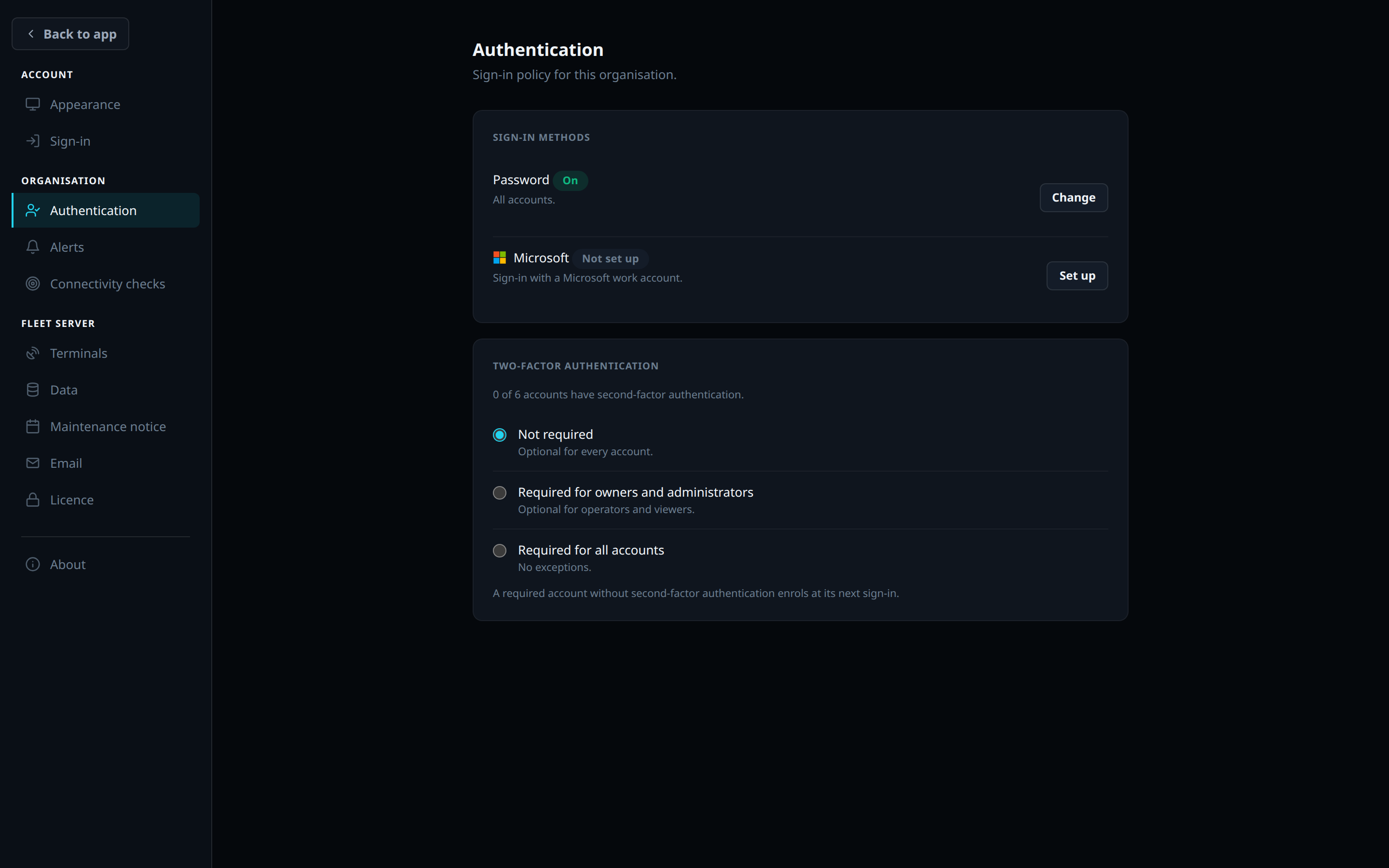
| Setting | Values |
|---|---|
| Two-factor authentication | Not required (the default), Required for owners and administrators, or Required for all accounts |
| Password | All accounts (the default), or Owners only. Under Owners only, only an owner signs in with a password. Every other account signs in with Microsoft. Owners only can be chosen once Microsoft sign-in is on |
A user sets up two-factor authentication at their next sign-in when their role requires it. No other page opens until they do. An owner keeps password sign-in under Owners only. Turning Microsoft sign-in off sets Password back to All accounts.
Microsoft sign-in
Microsoft sign-in is OpenID Connect against Microsoft Entra ID. Whoever runs the fleet server creates 1 app registration in Entra for it, and sets the registration’s client id, private key and certificate in the fleet server’s environment. See Server configuration. An organisation then turns Microsoft sign-in on for its own users.
- Under Authentication in Settings, press Set up on the Microsoft row.
- Copy the redirect address and add it to the app registration in Entra.
- Type the Directory (tenant) ID from the registration’s overview page.
- Press Save and test. The test signs the user in through Microsoft. When it passes, Microsoft sign-in is on for the organisation.
Changing the tenant id turns Microsoft sign-in off. A new test turns it back on.
On the managed service Nexus Telemetry holds the app registration, so the Microsoft row asks for the Directory (tenant) ID only. The first person from the tenant to sign in consents to the registration once. A tenant whose policy requires an administrator to consent does so from the same prompt. Turn off on the Microsoft row turns it off.
Signing in with Microsoft
With Microsoft sign-in on, the sign-in page shows Continue with Microsoft. Microsoft sign-in opens the account in that organisation with the Microsoft account’s email address. The address need not be verified. The first Microsoft sign-in connects the Microsoft account to the user and verifies the address.
| Outcome | Message |
|---|---|
| No account has that email address | No account has the Microsoft account’s email address. An administrator adds it. |
| The address is on accounts in more than one organisation | The Microsoft account matches accounts in more than one organisation. Use the organisation’s sign-in link. |
| Any other failure | Microsoft sign-in did not complete. The fleet server’s log records the reason |
Connected accounts on the Sign-in page names the Microsoft account connected to the user. Disconnect removes it. A user who signs in with Microsoft keeps their password. An Owner or Admin can tick Microsoft sign-in only for a user on the Users page. Microsoft sign-in only requires a verified email address. The fleet server refuses it for the last owner.