Settings
Settings holds a user’s own settings, the organisation’s settings and the fleet server’s settings, in 3 groups. It is opened from the cog in the icon rail, and Back to app returns to the dashboard. Every user can open it. Organisation is shown to an Owner or Admin, with Connectivity checks shown to every platform user as well, and Fleet server to users in the platform organisation, the one that manages the fleet server. A user who can read a section and not change it sees its fields disabled, with You have read-only access, so these settings cannot be changed. See Organisations for the platform organisation and Users and roles for who can change what.
Sections
| Group | Section | Contains |
|---|---|---|
| Account | Appearance | Theme: System, Dark or Light. Display scale, the size of everything on screen: Extra Small to Maximum. The search palette’s Change theme… sets the same theme |
| Account | Sign-in | The user’s account page: their email address, password, two-factor authentication and connected accounts. See Sign-in |
| Organisation | Authentication | The organisation’s sign-in policy: whether two-factor authentication is required, whether a password is allowed, and Microsoft sign-in. See Sign-in |
| Organisation | Alerts | Where alerts are delivered and which state changes send one. See Alerts |
| Organisation | Connectivity checks | Targets: addresses that every collector tests reachability to, by ping or by TCP connect. Also test the built-in targets adds the terminal, the site’s router, and Cloudflare’s and Google’s public resolvers |
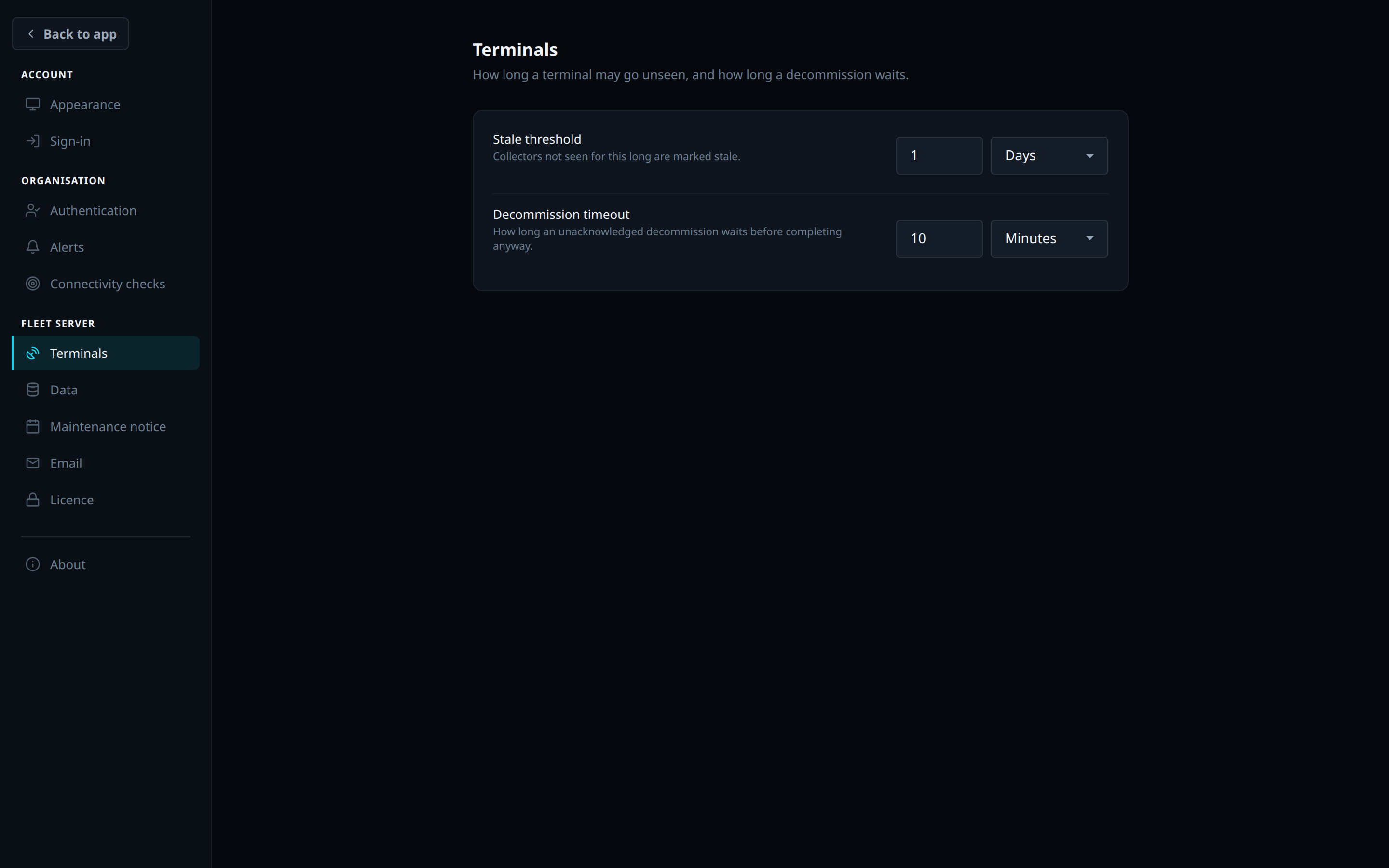
| Fleet server | Terminals | Stale threshold: how long a terminal may be silent before it is marked stale. The default is 1 day. Decommission timeout: how long a decommission waits for an offline collector to connect and confirm, before completing without it. The default is 10 minutes |
| Fleet server | Data | How long each kind of data is kept. Raw readings 7 days, 5-minute summaries 90 days, Hourly summaries 2 years, Audit log 90 days. Daily summaries, and audit entries for revoked certificates, are kept permanently |
| Fleet server | Maintenance notice | A notice to every user about maintenance on the fleet server: Start (UTC), Expected minutes and Note (optional), up to 200 characters. The notice is shown from 7 days before the start, and cleared once the expected minutes have passed. Clearing the start time withdraws it |
| Fleet server | Whether a key for the email sending service is set, and the Sender address, alerts and Sender address, account codes email comes from. Read-only. See Server configuration | |
| Fleet server | Licence | Status, Licence type, Licensed to, Expires, Collectors, Last validated, the fingerprint that identifies the organisation for licensing, Apply key, and Remove key once a key is stored. See Licensing |
| About | The version and its channel, Edition, Platform, whether an update is published, and links to the documentation, the release notes, the privacy policy, the terms and support |
Saving
| Section | Saves |
|---|---|
| Terminals, Data | Each field saves on its own when it changes. A value that is refused shows its error, and the previous value stays |
| Authentication, Alerts | A choice saves as it changes. A drawer saves on its own button |
| Maintenance notice | On Post notice |
| Connectivity checks | On Save targets |
| Appearance | When it changes. It is stored in the browser, not on the fleet server |
Connectivity target test
A target can be tested from the fleet server before it is saved.
- Press Add target. A form opens.
- Type an Address and a Label, and choose Ping, or TCP connect with a Port.
- Press Test now. The answer appears beside the button: Reachable with a time in milliseconds, or No answer, Name not found, Invalid address or Try again in a minute.
- Press Add target on the form to add it to the list, then Save targets.
TCP connect is for networks that block pings. It opens a connection to the port and closes it.
See Server configuration for every default, range, and when a change takes effect. The stale threshold is the one setting that changes what the dashboard shows: a terminal past it reads Outage. See States.