NOC view
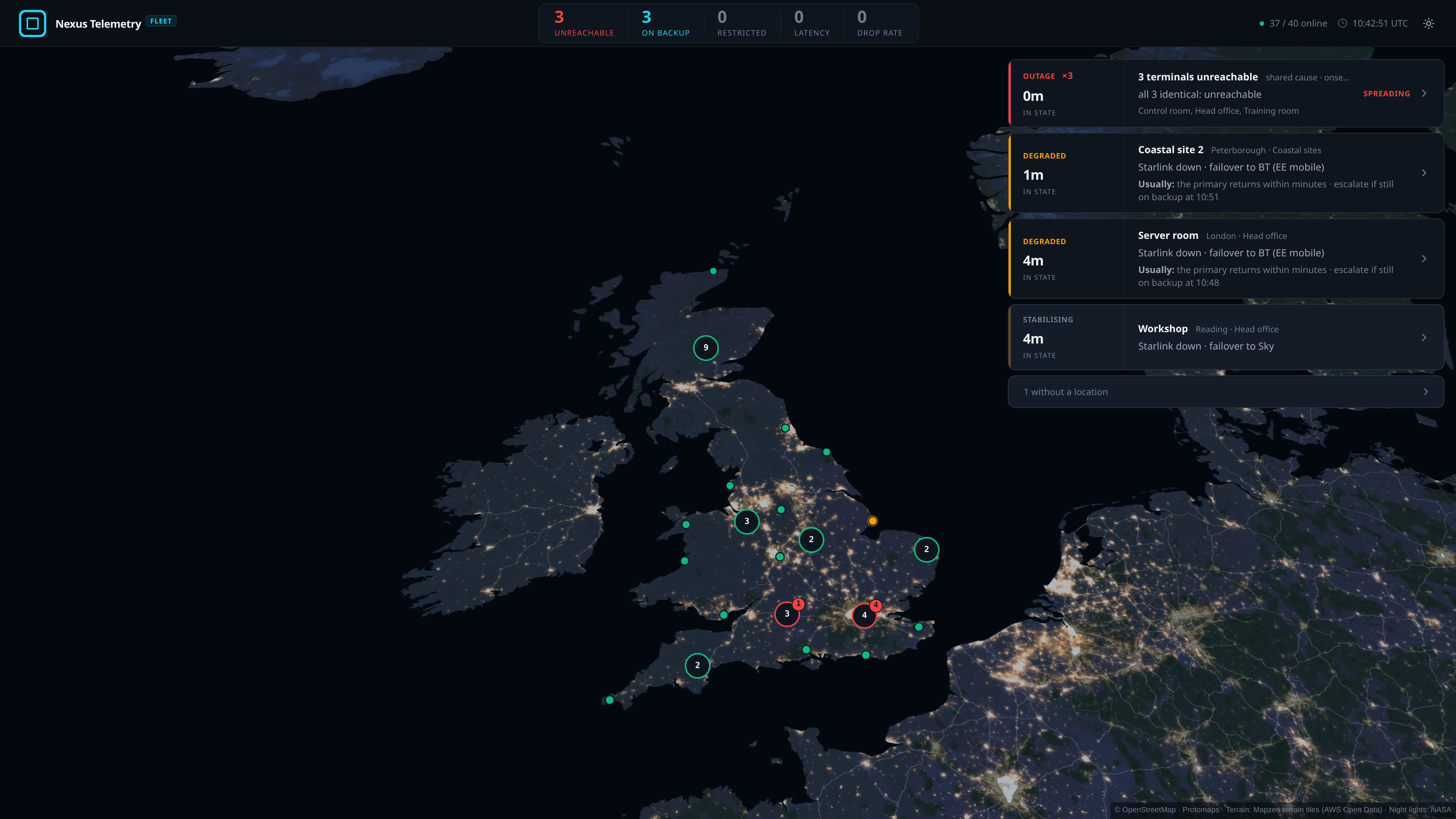
The NOC view is a live map of the organisation’s terminals beside the attention cards of the Status view. It is for a desk, or for a wall screen in kiosk mode. Open it from NOC view on the rail.
Layout
At 1150 px wide and over, the map fills the page and the cards are in a column on its right. Narrower, the map is on top and the cards are below it.
The top bar has Follow alerts, the online count, the UTC clock, Kiosk mode and the light and dark switch. At 1150 px and over, it also has the count strip. Narrower, the count strip is above the cards. It has one count per cause: Unreachable, On backup, Restricted, Latency and Drop rate. Click a count to show only the cards with that cause. Click it again to show every card.
A terminal is on the map only when Fleet has its position. See Collector GPS. The other terminals are listed under N without a location at the foot of the column.
Cards
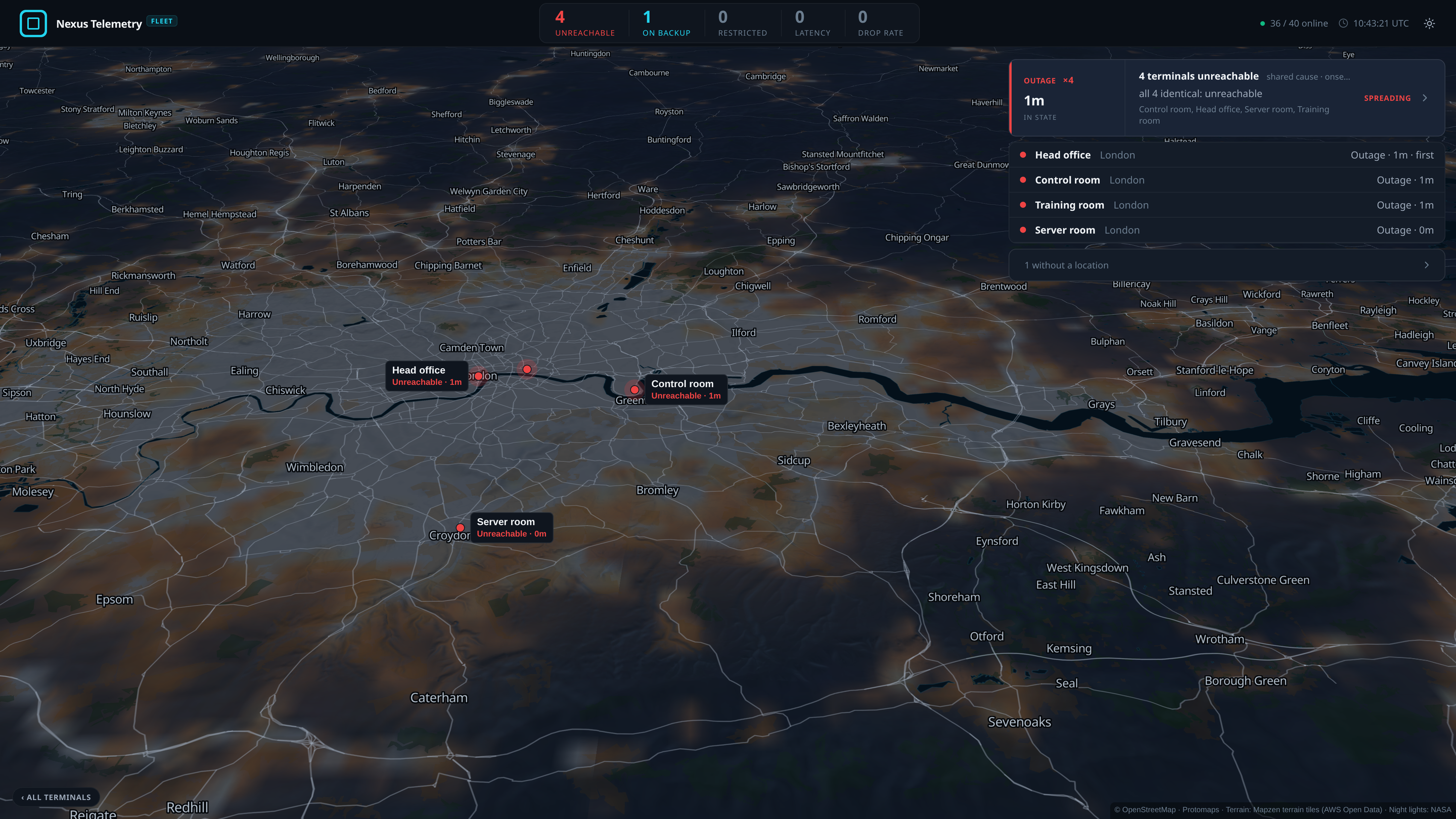
The cards are the attention cards, worst first, with the same states, causes and Usually: lines. 3 or more terminals with the same cause and onsets close together are one incident card. Click it to list its terminals. The first terminal to fail is listed first, marked first, and the map shows all of them.
Cards that do not fit the column are collapsed into one line, + N more · oldest HH:MM. Click it to show them. They collapse again 60 seconds after the column was last opened or scrolled.
Terminal panel
Click a card to open the terminal’s panel in the column. The map flies to the terminal. Close the panel with its close button, with Escape, or with the button at the foot of the map, which reads All terminals when it returns to the whole estate.
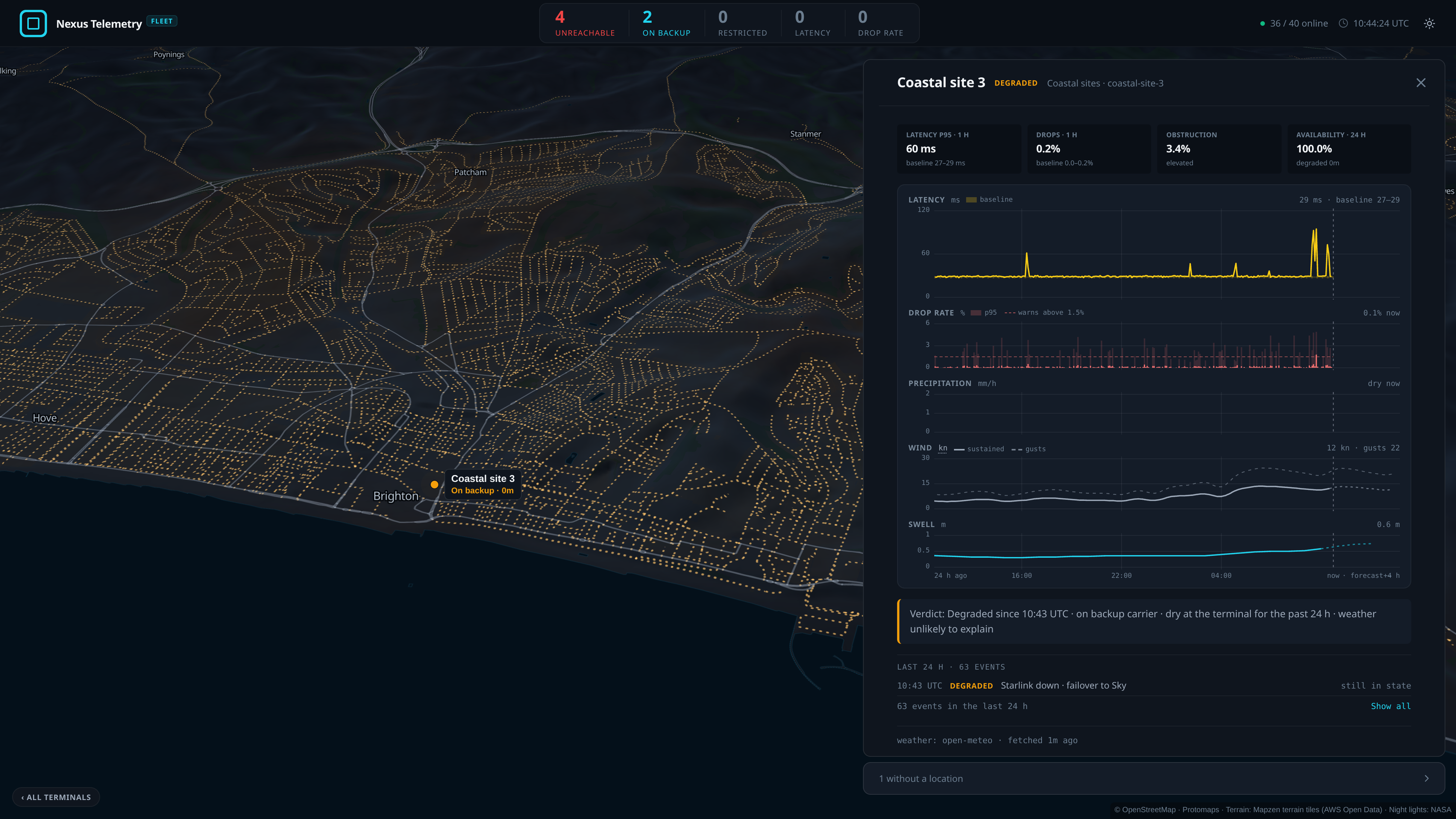
The panel lists up to 5 of the terminal’s latest events, as many as fit the column whole. Show all lists the rest. On a wall display the line under the events shows their count without Show all.
The page address keeps the open panel, the open incident and the count filter. Open the terminal’s Live view from the panel, then click the browser’s Back: the NOC view opens with the same panel.
Follow alerts
Follow alerts is on by default. When a card appears, changes its state or cause, or a Stabilising terminal is reverted, the map flies to the terminal and returns 12 seconds after it sets off. For a terminal in an incident, the map shows all the incident’s terminals. A terminal that recovers does not move the map.
An alert within 60 seconds of the last click, scroll, touch or key press does not move the map. Kiosk mode, the light and dark switch, Follow alerts, Escape, the function keys and keys pressed with Ctrl, Alt or Command do not count.
Kiosk mode
Kiosk mode shows the view full screen, without the rail and without the links out of the terminal panel. Any signed-in user can use it. Leaving full screen, with Escape or the browser’s own control, ends kiosk mode. The sign-in does not change.
A wall display is always in kiosk mode and always follows alerts. It has no Kiosk mode button and no Follow alerts switch. See Wall displays.
Burn-in
The column, the button at the foot of the map and the top bar move by 4 pixels on a 20-minute cycle, so edges and text do not stay on the same pixels for hours. Narrower than 1150 px, the column stays still. They all stay still when the operating system is set to reduce motion.
Map
By default, the map’s credit line, at its bottom right, reads © OpenStreetMap ·
Protomaps · Terrain: Mapzen terrain tiles (AWS Open Data) · Night lights: NASA.
The browser loads the map from the fleet server only: its tiles and fonts are
served under the fleet server’s /tiles address.